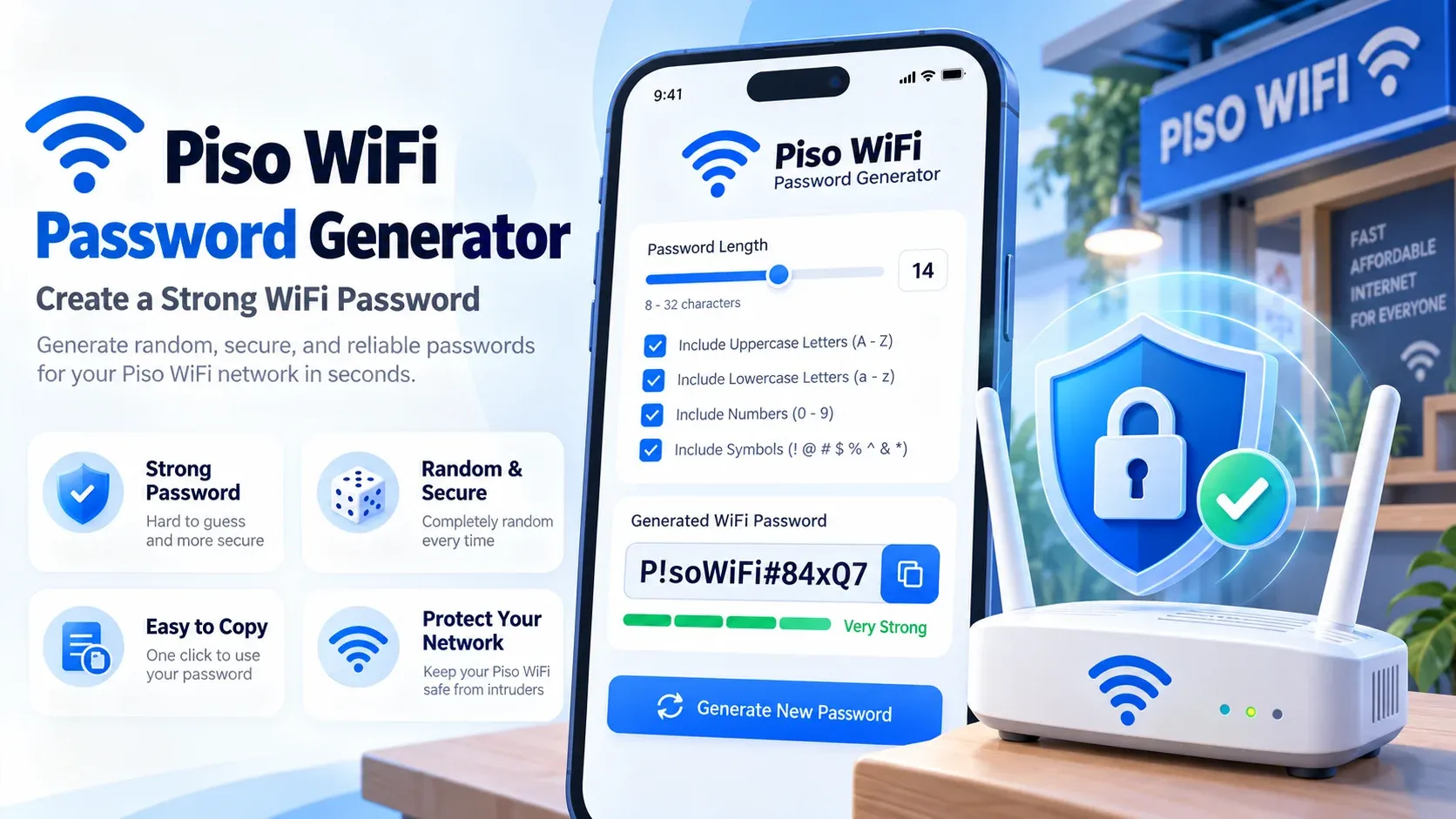
If you have a weak password for your WiFi, it can be easier for unknown users to access your network. Simple number patterns, names, phone numbers, and birthdays are easy to remember, but can be easy to guess. Our Piso WiFi Password Generator is the best tool to generate a long, random password.
The length of the password and the inclusion of letters, numbers, or symbols are user-defined and depend on the router and devices used. After you have your password, you need to enter it into your router's configuration and not share it. We will help you make a strong password, select suitable characters, add it to your router and keep your Piso WiFi network secure.
What Is a Piso WiFi Password Generator?
A Piso WiFi Password Generator is an online tool that creates random passwords for wireless networks. Instead of thinking of a password yourself, you let the tool create a stronger combination of characters. This reduces the chance of using common words or predictable patterns.
You can use the generated password for a Piso WiFi network, home router, guest WiFi, or another compatible wireless network. Most password generators also let you control the password length and decide whether symbols, numbers, and different letter cases should be included.
When Can You Use a WiFi Password Generator?
A strong WiFi password should be difficult for others to guess. Our password generator creates a random key without using common words or personal details. It can be useful when you are:
How Does a Password Generator Work?
A password generator creates a random mix of characters based on the options you select. The process usually works like this:
- 1Choose the password length.
- 2Select uppercase and lowercase letters.
- 3Add numbers.
- 4Include supported symbols if needed.
- 5Generate the password.
- 6Copy and save it securely.
- 7Add it to your router’s WiFi settings.

Why Does a Strong Piso WiFi Password Matter?
Your Piso WiFi network is secured by a strong password. It also prevents unwanted access and maintains your connection available for the proper users.
If the password is weak, unauthorised users may be able to connect easily. Long and random passwords are more difficult to guess.
You can allow extra users to use your bandwidth and reduce speeds for your customers. WPA2 or WPA3 provides more protection for your WiFi network, which is provided by a strong password.
Other devices you can use in your network include computers, cameras, printers, and smart TVs. It provides an additional measure of security for these devices by preventing unknown users from accessing the network.
What Makes a Strong WiFi Password?
WiFi password should be long, random and unique. Should not contain names, birthdays, phone numbers, common words, or simple number patterns.
If your router and devices can accommodate it, then you have a good starting point at 16 characters or more for many networks. The password may be more difficult to guess if it contains a combination of letters, numbers, and symbols that are supported.
Which Character Types Can You Include?
Our wifi password generator contains multiple types of characters. A diverse character set makes the final password less predictable, particularly if the password is also lengthy.
You may include:
Password Patterns to Avoid
Some passwords are easy to guess because they use common words or personal details. For better security, avoid these password patterns:
Just one letter in a common password is not enough to make it strong. For example, changing an “a” to an “@” in a short dictionary word leaves a pattern that is still recognisable.
How to Choose the Right WiFi Password
A good WiFi password needs to be strong, but it should also work well with your devices. Length, characters, and your router’s security settings all matter.
Password length
A longer random password is harder to guess than a short one. Around 16 characters is a practical choice for many networks, but always follow the limits supported by your router and devices.
Character mix
Mixing letters, numbers, and supported symbols can make your password less predictable. If symbols are difficult to enter on a smart TV or older device, use a longer password with characters that are easier to type.
Confusing characters
Some characters look almost the same, such as O and 0 or I, l, and 1. Leaving them out can make your password easier to enter without making typing mistakes.
Password or passphrase
A random password works well when you can save it in a password manager. If you need to type the password often, a long passphrase made from unrelated words may be easier to use.
WiFi security
A strong password works best with modern WiFi security. Use WPA3 when your router and devices support it, or WPA2 when needed. Keep your router firmware updated as well.
Piso WiFi Password Generator Options
Our Piso WiFi password generator allows you to change the result before generating it. This makes it easier to create a password that matches your router and connected devices.
Some of these are:
How to Add the Generated Password to Your Router
After creating a new password, you need to save it in your router’s WiFi settings. The options may look different on each router, but the basic process is:
- 1Connect to your own or an authorised router. If possible, use a wired connection, as changing the WiFi password will disconnect wireless devices.
- 2Enter the local router address provided by the manufacturer or network administrator. Common addresses exist, but you should use the address assigned to your specific router.
- 3Input your router admin information. Keep in mind that the router admin password is not the same as the WiFi password.
- 4Search for Wireless, WiFi, WLAN, or Wireless Security. This will vary depending on the router you are using.
- 5Enter your generated password into the WiFi password, passphrase or pre-shared key field. Use WPA2 or WPA3 if available and suitable for your devices.
- 6Save or implement the new settings. The WiFi network might resume after the change.
- 7You'll typically need the old password for phones, laptops, TVs, and other wireless devices. Reconnect them individually.

WiFi Password vs Router Admin Password
Both of these passwords are used for different purposes. Your WiFi password is used to enable authorised devices to connect to the wireless network. Access to your router's settings, including the network name, WiFi security, and other settings, is protected by your router admin password.
Different strong passwords should be used for both. Having your WiFi password shouldn't automatically give them the password they need to change your router settings.
When using Piso WiFi, it is particularly crucial to secure the owner or admin access.
Use a Separate Guest Network Password
If your router offers a guest-network feature, it's best to use separate credentials. A guest network allows guests to connect without having to provide the same password as you use for your main network. This can also simplify password management.
If the guest password is made public, you can change it without changing the password on all devices that are connected to the main network. If the system allows, customer access and private management access should be different for Piso WiFi owners.
When Should You Change Your WiFi Password?
If you think that the current password might not be kept private, it is more important to change it. You should change your WiFi password when:
If you have forgotten an owner password, check the proper Piso WiFi reset and recovery process instead of trying random credentials.
Piso WiFi Owner Security Checklist
Your generated password from Piso WiFi Password Generator is only one part of securing a Piso WiFi network. Router configuration, admin access, firmware, and customer network separation also matter. As an owner, you should:
If you operate an AdoPiSoft machine, protect your ADO Piso WiFi Admin access with separate credentials.
FAQs
What's the Best WiFi Password Length?
A longer password generally gives you better protection when it is random. This is a good guideline of 16 characters, but use the requirements supported by your router and devices.
Can a Piso WiFi Password Generator Create WPA2 and WPA3 Passwords?
You can use a generator to generate a passphrase that meets the requirements for passwords supported by your router. You have to choose the right security mode for WPA2 or WPA3 in the router settings.
What Is the Best Password for Piso WiFi?
A good Piso WiFi password will be long, random, and unique. Do not use names, birthdays, common words or easy number patterns.
Should You Change the Default Piso WiFi Password?
Yes, change default network and admin passwords when installing. Where possible, use separate strong passwords for customer access to the WiFi network and for private administrative access.
Can You Use a Generated Password on a Smart TV?
Yes, if the password uses characters supported by the device. A longer password without confusing symbols may be easier to type with a TV remote.
Does WiFi Password equal Admin Password?
No, access to the wireless network is password-protected, and your router or system configuration is protected by an admin password. Maintain strong and separate.
Conclusion
A Piso WiFi Password Generator helps users generate a difficult-to-guess password. After you create one, set it in your router and don't share it. WPA2 or WPA3 and securing the admin login provides additional security. Some basic security practices can make your Piso WiFi network more secure for everyday use.