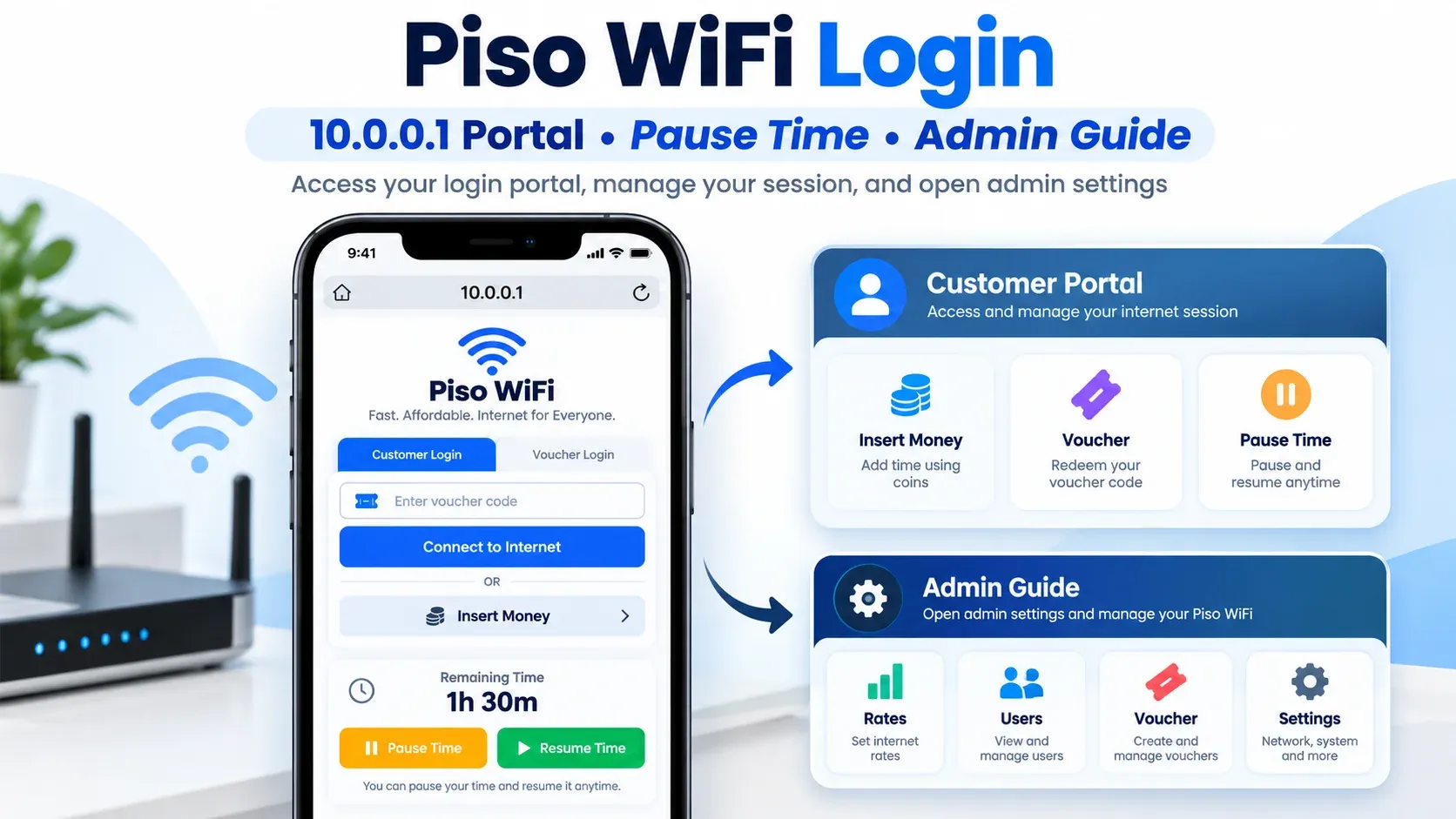
A Piso WiFi Login gives you access to the local portal for your paid internet session. You use it to insert coins, enter a voucher, check your remaining time, or pause an active session. The Pause option only appears when the machine supports it. Most compatible setups can be opened by connecting to the Piso WiFi network and visiting 10.0.0.1 in your browser.
Sometimes, the login page does not open even when you are connected to WiFi. The wrong portal address, mobile data, a VPN, or the wrong network can cause this problem. We will guide you on the 10.0.0.1 login, Pause Time, Vendo access, common login problems, and the admin area used by authorized machine operators.
Piso WiFi Login
A Login is the process of joining a Piso WiFi network and opening its customer portal. This local page works as the main control area for your paid WiFi session. You normally open it after connecting to the network shown by the vendo machine. The portal then connects your device with the local Piso WiFi system.
The options you see depend on how the operator has set up the machine. You find coin payment, voucher entry, remaining minutes, session status, and Pause or Resume controls. Some machines show only a few of these options. The available features can also change from one vendo system to another.
10.0.0.1 Login
You can open the portal after connecting to the right Piso WiFi network. Follow these steps to access your session.
- 1Open your device’s WiFi settings and select the Piso WiFi network. Wait until your device is connected.
- 2Open Chrome, Safari, Firefox, or another browser. Turn off your VPN if it blocks the local portal.
- 3Type 10.0.0.1 in the browser address bar. Enter it directly instead of searching for it on Google.
- 4Wait for the Piso WiFi login page to appear. If it stays blank, refresh the page or reopen your browser.
- 5Insert coins or enter a valid voucher code. Once accepted, your paid internet session will start.

Customer and Operator Access

Piso WiFi systems have separate areas for customers and operators. You should use the page that matches what you need to do.
LPB Piso WiFi Portal and Piso WiFi Pause Time
The login portal gives you access to your current session and available time controls. Follow these steps to log in to the LPB Piso WiFi portal and use Piso WiFi Pause Time:
- 1Connect your device to the LPB Piso WiFi network.
- 2Open a browser and enter 10.0.0.1.
- 3Wait for your active session to appear.
- 4Find the Pause Time option on the portal.
- 5Tap Pause and wait for confirmation.
- 6Return to the same network when you need the internet again.
- 7Open the portal and select Resume Time.

Piso WiFi Vendo Pause Login
The customer portal allows you to open your active session and use the available Pause controls. Follow these steps to access the Piso WiFi Vendo Pause login:
- 1Join the correct Piso WiFi vendo network.
- 2Enter 10.0.0.1 in your browser.
- 3Open your active internet session.
- 4Select Pause Time to stop the timer.
- 5Wait until the pause is confirmed.
- 6Reconnect to the same network later.
- 7Select Resume to continue your session.
Admin Dashboard
The admin dashboard gives authorized operators control over the main machine and network settings. Depending on the software, you can find the following options:
Incorrect Login Addresses
A small typing mistake can stop the page from opening. The most common error is adding an extra zero to the local IP address. Here are incorrect login addresses that look similar to the correct IP, but they contain typing or format errors:
- 10.0.0.0.1 Piso WiFi portal login
- 10.0.0.0.1 Piso WiFi login
- 10.0.0.0.1 Piso WiFi admin
- 10.0.0.0.1/admin Piso WiFi
- 10.0 0.0 1 Piso WiFi portal login
- 10.0 0.0 1 Piso WiFi portal login pause
- 10.0.01/admin Piso WiFi
Note: The address 10.0.0.0.1 has five number groups, so it is not a valid IPv4 address. For compatible Piso WiFi setups, 10.0.0.1 is the commonly used portal address.
Common Login Problems
A failed Login does not always mean the machine has a major problem. A wrong network, browser issue, or incorrect IP can block the portal. Check these common causes before trying again.
You need to be on the correct Piso WiFi network. The local portal will not open on another WiFi network. Look for the correct SSID and reconnect to the network.
The local wi-fi connection can be disrupted by mobile data. This can prevent the login page from loading. Switch off mobile data and restart 10.0.0.1.
A VPN hides the local Piso WiFi address. While in use, your browser doesn't connect to the login portal. Go back to 10.0.0.1 and disable the VPN.
You could end up at the wrong address if you make a typo when typing the address. 10.0.0.0.1 is not correct because it has an extra zero. Carefully enter 10.0.0.1 in the browser address bar.
The login page contains outdated information that is related to your browser. Close the browser and open it again. Alternatively, you can use another browser on the same WiFi connection.
End Your Piso WiFi Session Safely
Your session may keep running if you leave the network without logging out properly. Follow these steps to end your Piso WiFi session safely:
- 1Open the Piso WiFi login page.
- 2Check your remaining internet time.
- 3Use Pause Time first if you want to save unused minutes.
- 4Select Logout or Disconnect if the option appears.
- 5Wait for the session to end before leaving the network.
- 6Turn off WiFi or disconnect from the Piso WiFi network.
Tips Before Opening the Piso WiFi Portal
A few checks can make the login process easy and reduce common connection issues. These tips to try before opening the Piso WiFi portal:
Piso WiFi Login Questions
Can You Open Piso Login on Android?
Yes, connect your Android phone to the Piso WiFi network and open Chrome. Enter 10.0.0.1 in the address bar to access the login page.
Can You Access Piso WiFi Login on iPhone?
Yes, connect to the Piso WiFi network and launch Safari on your iPhone. To launch the login page, type 10.0.0.1.
How to Access the Piso WiFi login page?
Connect to the Piso WiFi network and launch your browser. Type in 10.0.0.1 and wait for the customer portal to load.
How to Use Piso WiFi Safely?
Use Piso WiFi as you would use any other shared or public WiFi network. Do not share passwords, OTP, payment PINs or any other personal information during connection.
Piso WiFi Login Guide
A Piso WiFi Login gives you access to your paid internet session through the local portal. On supported machines, use 10.0.0.1 to check your time, enter a Piso wifi voucher or Pause and Resume. If the login page is not appearing, make sure you have a good WiFi connection, browser, mobile data, no VPN, and portal address.